Wednesday, June 12, 2013

sytem not shutdown


Windows will not shut down properly


Your operating system does not want shut down properly? This is probably due to a problem related to the power management (APM: Advanced Power Management).
  • To handle this problem, we must first ensure that the APM is enabled in the BIOS of the computer, and then enable it under Windows:
  • Control Panel/System/Hardware/Device Manager/ View/ Show Hidden Devices
  • Then look for the NT APM/Legacy Interface Node and activate it.
  • Or:
  • Control Panel> Power Options> APM> See that box is checked.
  • Otherwise, you may install the new device with the Windows wizard.


Then
  • Start, Run, type "regedit"
  • Type Ctrl + F
  • Search "PowerDownAfterShutDown"
  • Set its value to 1 and restart the computer.

Thursday, January 3, 2013

windows startup slow booting


Recently I face an issue with slow startup in Windows. My Windows will stuck at the Windows login for a long time before I can login. After login, my taskbar (the bar at the bottom) is not loading… but the desktop I fully loaded. But when I try to open any folders (e.g. My Computer) it will just hang there or not responding.
After searching high and low, I finally found the cause of the issue. The issue is caused by one of my hard drive that have bad sector! So, to fix this issue, I need to run the disk checker to check for the bad sector and fix it (if possible). Since I can’t open My Computer, I can’t access the disk properties to open the disk checker. I decided to download the Seagate’s SeaTools to find and fix the issue. You can get the bootable SeaTools here. After you’ve created the bootable disc, then you can boot into SeaTools and use it to scan and fix the issue.

yahoomail outlook settings


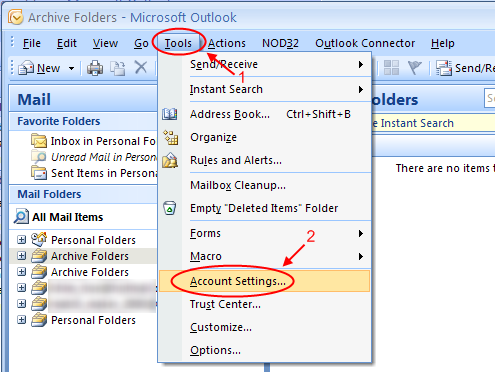
1. First, Go to Tools -> Account Settings.
Go to Tools -> Account Settings
2. Click on ‘New’.
Click 'New'
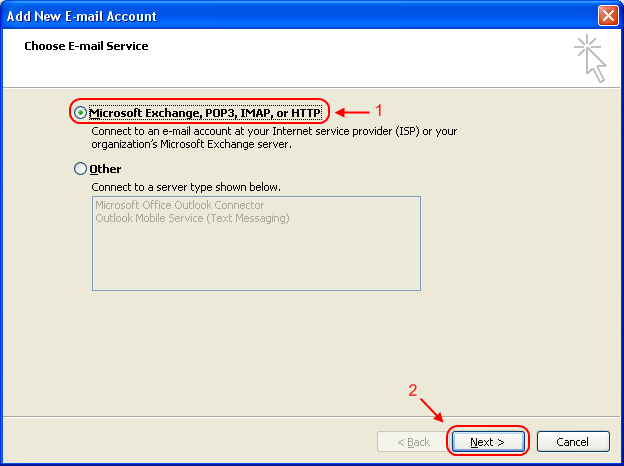
3. Select ‘Microsoft Exchange, POP3, IMAP, or HTTP’ and click Next.Select 'Microsoft Exchange, POP3, IMAP, or HTTP'
4. Tick ‘Manually configure server settings or additional server types’ and click Next.Tick 'Manually configure server settings or additional server types'
5. Select ‘Internet E-mail’.
Select 'Internet E-mail'6. Fill in your account details.
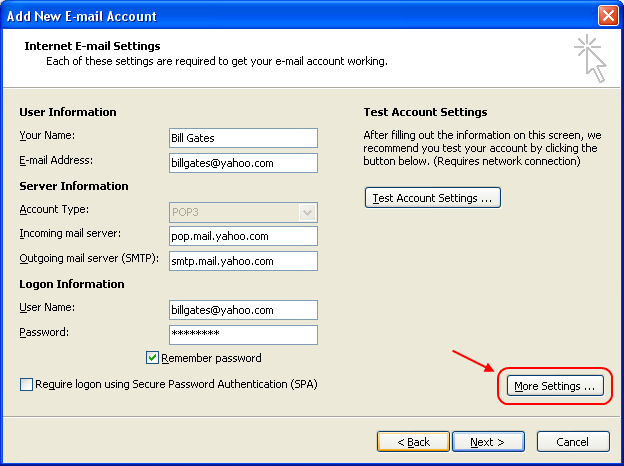
Your Name: <Your display name in the email>
E-mail Address: <The email address that you are setting up>
Account type: <POP3>
Incoming mail server: <pop.mail.yahoo.com>
Outgoing mail server: <smtp.mail.yahoo.com>
User name: <Your Yahoo! Mail address>
Passowrd: <Your Yahoo! Mail password>
Once you’re done, click the ‘More Settings…’ button.
Fill account details and click 'More Settings...'7. The ‘Internet Email Settings’ windows will pop up. Click on the ‘Advanced’ tab. Change the Incoming server (POP3) to 995. Tick the ‘This server requires an encrypted connection (SSL)’. Then, change the ‘Outgoing server (SMTP) to 465 and Select ‘SSL’ in the drop down list.
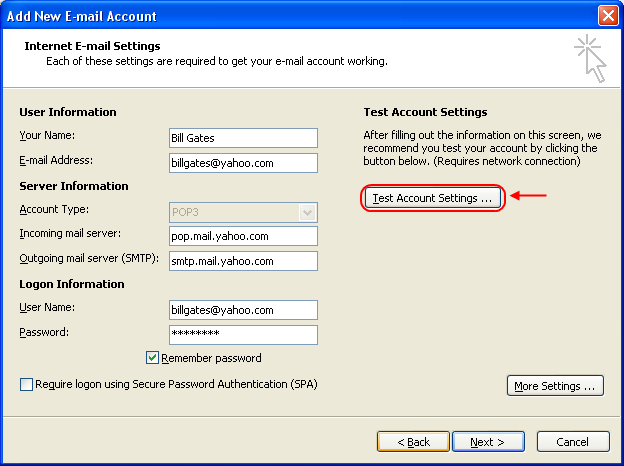
Change the ports for POP3 and SMTP and also the connection encryption.8. Next, go to the ‘Outgoing Server’ tab and tick the ‘My outgoing server (SMTP) requires authentication’ option. Select ‘Use same settings as my incoming mail server’. Then click ‘OK’.Change the SMTP settings9. Click on the ‘Test Account Settings’ button.
Click 'Test Account Settings'You should be seeing the following screen if all the settings are correct:
Test completed succesfully10. Once you’re done, click ‘Next’. Congratulations! You just finish setting up your Yahoo! Mail in Microsoft Outlook 2007!
FinishIf you have large Inbox, it will take some time for Outlook to download all the mails.